|
Glass is the application that enables camera phones to read codes and retrieve content. It was created by HP Labs in Bristol, UK. A key component of Glass is Lavasphere by Gavitec, the image-processing technology that enables camera phones to read codes. Glass is designed for Series 60 camera phones with texting (SMS) and web (WAP, HTTP) connectivity. Due to issues with firmware implementations on some Series 60 handsets, Glass is currently available only for the following handsets:
The latest version of Glass is 1.02
Note: this overview refers to version 1.02. Version 1.02 includes minor fixes over 1.01. Version 1.01 adds the following to version 1.00:
Glass has a "Reader" screen for reading and activating codes (known as the "Looking" screen in version 1.00), a "History" screen for codes you've previously activated or saved for later, and an "Options" screen for configuring Glass. Reading a code means having Glass extract the data from it. That doesn't involve any network communication. Activating a code means causing Glass to retrieve whatever content the code links to. That generally means switching to the phone's browser to download content, sending a text message so that the provider can send you content via a returned text message, or, more rarely, dialling a number to make a call or consuming data held entirely in a code. You switch between the Looking, History and Options screens (not shown) by pressing the jog button to the right or left.
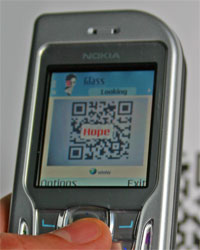
In the Reader screen (left image above), Glass is attempting to recognise a code from whatever you are pointing it at.
You can tell when it has read a code because pop-up text will appear superimposed over the middle of the screen,
as well as an icon beneath the camera image to indicate whether activating the code will cause a download
The people who created the code have generally included pop-up text to tell you something relating to what the code is printed on or the content it links to. It may help you decide whether to access that content. If there is no pop-up text in the code, Glass uses the default message "Click to activate". The following picture shows pop-up text scrolling across the centre of the screen:
To read a code, hold the phone "flat" so that the corners of the code are as square as possible. The code should occupy as much of the screen as possible but must be complete and in focus. It is OK for the code to be rotated, although it is slightly easier for Glass to read it if it isn't. If you can see a code but no pop-up text appears, there are several possible reasons:
If you are following the above guidelines but Glass still cannot read a code, try pressing the jog button. The screen will freeze while Glass takes and analyses a still image at a higher resolution than is possible at video rate. You will see the message "Processing..." just below the image. If Glass succeeds this time then you will see the pop-up text. Otherwise, Glass has still been unable to read the code. You may prefer to use high-resolution mode all the time, as it copes better than video mode at longer distances from the code, and when the phone is at an angle to the paper.
When the pop-up text appears, you can either "activate" the code or find out more about the code. To activate the code, press the jog button. At that point, depending on the code, Glass will switch to the phone's web browser to download content, or send a text (SMS) message. You can dismiss the dialogue explaining what Glass is doing by pressing the jog button. You may want to find out more about what will happen before you activate the code. To find out where the code links to, press the button beneath "Options" and select "Code info". You will see a URL, or a telephone number and the contents of the text (SMS) message that Glass will send to that number. You can save a code to activate later. While the popup text appears, select "Save to history" from the Options menu.
To return to Glass and read another code after it has opened the browser, press the phone's menu
key, which looks something like this: 
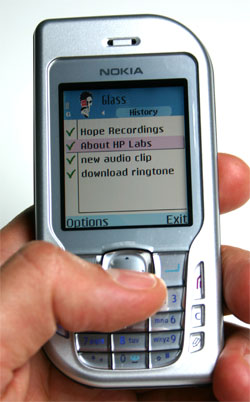
Glass automatically saves the codes you've activated into the History list, as well as enabling you to save unactivated codes there for later. By pressing the jog button with a history entry selected, or by selecting "Code info" from the Options menu, you can look at when you read the code and what it contains. Dismiss the information by pressing the jog button. You will then be asked whether you want to reactivate the code. Under the Options menu there is also a "Display code" feature. This means turning the data back into a code for display on the phone. Someone else with a copy of Glass can then read it on their phone! Note that the Display code feature involves a download of the code image. We use Datamatrix codes on the phone, regardless of whether the original code was a QR or Datamatrix code, because of their relative compactness.
The Options screen enables you to choose which browser Glass should use: the phone's native browser (the default), or Opera. Note that you may need to install Opera if you want to use it. By default, Glass displays a message when you activate a code, explaining the action it is taking. You can use the Options screen to switch those explanations off.
|
|||||||||
 |
|||||||||
 |
|||||||||



 About Glass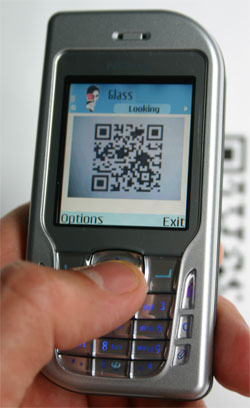
 , send a text (SMS) message
  , dial a number
  or consume data in the code
  .
.